miercuri, 4 aprilie 2018

Bulk users accounts handling with Powershell

When you look at the daily life of a sysadmin you will always have to handle some user accounts, either creating them or assigning to groups, give them proper rights and even deleting or disabling them. Of course, any occasional account operations are the easiest part of the job.
What happens when you meet with a situation when you need to process a very big amount of them ? You can always start the mundane task of doing the same set of clicks and drags for a hundred times, just wondering how fast you can move, or... do it the easy way: Powershell.

If you have to deal with thousands of accounts and there's a massive change that involves a big chunk of them, it can become very handy to get used to some simple scripts that can help you save a lot of boring work.

So we start with the following scenario to elaborate on this: let's say you have an older software solution that requires some lots of users to have access to some resources, and that makes them belong in a certain AD group. And then, there is some new software solution going to be implemented and this requires moving some users from the old solution to the new one. It might be a pilot that requires test users, multi-phase implementation, massive promotion and so on.
Basically, you need to move a subset of user accounts from an AD group to a new one, based on a certain criteria.
This will be made in a few simple steps:
  • build or export a CSV containing a column filled with all needed users' Distinguished Name and be sure the first line of your CSV holds the description of the fields below it. In the following example te first line of the CSV is supposed to contain "SAMACCOUNTNAME" but you can call it "SAM" or "DN" or even "JACK" if you like it. The secret is to use the exact reference later in the script.
  • opening the PS console you should then first import the CSV into an array:

$userlist= Import-Csv C:\Temp\CSV_Users_List.txt
  • then you need to make two more variables that contain the initial group from where you need to remove the accounts and the new group that will need the accounts added. Be sure that the actual lines will point th the exact Distinguished Name of each group.
$grouptoremovefrom = "CN=OldGroup,OU=OldOU,DC=xxx,DC=xxx,DC=com"

$grouptoaddto = "CN=NewGroup,OU=OtherOU,DC=xxx,DC=xxx,DC=com"

  • now you can trigger the actual moving of the whole bunch of accounts. It involves removing from the old group and adding to the new group and it is done like this:
foreach  ($user in $userlist) { Remove-ADGroupMember -Identity $grouptoremovefrom '
 -Members $user.SAMACCOUNTNAME -Confirm:$false}
foreach  ($user in $userlist) { Add-ADGroupMember -Identity $grouptoaddto '
 -Members $user.SAMACCOUNTNAME -Confirm:$false}

Observations:
- you can use the quote character to continue a command on the next line or you can remove it and place the whole command on the same line.
- foreach is used to parse the entire array held in $userlist variable and takes each account stored there one by one
- -Identity switch passes the name of the group that is held in $grouptoremovefrom and $grouptoaddto variables
- -Members switch passes the current account Distinguished Name to the actual command to remove or to add the specified account from/to the group
- -Confirm switch is used to avoid confirmation for each account

In order to keep track of the changes you can count the number of the accounts stored in the $userlist variable, count the number of accounts in each group before and after running the script. To do that you can use the following:
$userlist.Count
$oldgroup = Get-ADGroupMember -Identity $grouptoremovefrom
$oldgroup.Count
$newgroup =  Get-ADGroupMember -Identity $grouptoaddto
$newgroup.Count

It might seem a little elaborate but putting it together it looks just like that:
$userlist= Import-Csv C:\Temp\CSV_Users_List.txt
$grouptoremovefrom = "CN=OldGroup,OU=OldOU,DC=xxx,DC=xxx,DC=com"
$grouptoaddto = "CN=NewGroup,OU=OtherOU,DC=xxx,DC=xxx,DC=com"

$userlist.Count
$oldgroup = Get-ADGroupMember -Identity $grouptoremovefrom
$oldgroup.Count
$newgroup =  Get-ADGroupMember -Identity $grouptoaddto
$newgroup.Count

foreach  ($user in $userlist) { Remove-ADGroupMember -Identity $grouptoremovefrom '
 -Members $user.SAMACCOUNTNAME -Confirm:$false}
foreach  ($user in $userlist) { Add-ADGroupMember -Identity $grouptoaddto '
 -Members $user.SAMACCOUNTNAME -Confirm:$false}

$userlist.Count
$oldgroup = Get-ADGroupMember -Identity $grouptoremovefrom
$oldgroup.Count
### should  return the initial count - userlist.count
$newgroup =  Get-ADGroupMember -Identity $grouptoaddto
$newgroup.Count
### should  return the initial count + userlist.count

Putting it together does not seem as hard and will sure not be as boring as processing hundreds of accounts manually.
What do you think ?

duminică, 3 iulie 2016

Holiday time


Since is holiday time (yuppie), I thought to make a theme shift, just to show IT guys don't always spend their time crunching data or tinkering with hardware.
So here you can see my first attempt to get some underwater footage using the new aquired Rollei S-50 ActionCam.


Second footage. No music this time so closer to real feel, you can actually hear the bubbles :)

miercuri, 9 martie 2016

GUI vs. console - MinShell

When it comes to arguments between linux and windows followers, one of the main items brought to the table mostly by linux fans is the professional look of the linux console, operated by command line, opposed by rich graphics of the windows interface. Of course we are talking here about server flavors and not desktop ones.

The linux console offers a powerful set of commands that (assuming one knows the syntax and area of coverage for most of the common commands very well) will let you do almost anything you want, keep a strict control of what is running and what it does and will keep same strict control over resources like CPU load and memory used, but operating it requires more knowledge and skills.

On the opposite side, a typical Windows Server deployment will offer you a lot of features brought by the Graphic User Interface (GUI), a desktop experience that allows you to easy configure roles and services, even for less seasoned professionals. The easy part is balanced in this case by fewer options and more resource consumption. Basically you instruct the server to play some roles that you want it to but you have no strict control since some so called "next-next-finish" wizards make some decisions on your behalf. And all of this at a higher resource consumption. As a footnote, since I am also using linux on daily basis be sure I will not praise Windows for what it's not worth.

Of course most of the people interested in this matter have heard about the "core" option when installing a Windows Server. But, be serious, how many of you tried to operate a core version of Windows for production purpose ? For a core Windows Server to operate effectively you will need to be a real wizard to replace all the background operations behind the so called "next-next-finish" procedure. Be sure it can be done by using PowerShell but I have seen or known of far more share of linux gurus that PowerShell wizards. The PowerShell part will be covered in another series of posts so, if interested, stay around.

Now what do you think about a flavor of Windows that will be easier to operate than the core version,  but is very close to it, also retaining a minimal graphic interface but have nothing to do with the desktop experience we were used to ? This is called MinShell and I think it's the best compromise between a bare console with absolute control via command line and a full GUI.

What the MinShell brings:
  • fewer resources consumption (no real graphic load)
  • smaller attack surface (fewer running services)
  • smaller patch footprint (no need for extra updates)
  • Server Manager (a minimum graphic shell needed to accomplish any management tasks you need)

Now that we established the reasons why one would decide to favor MinShell over full GUI or console it is time to detail how exactly can we switch between GUI, Core and MinShell states of the operating system.

1. GUI to Core

Most of the times, when we prepare a server for holding certain roles in a production environment we can do all the setup and testing phase easier if we do it using the GUI state of the operating system. After we have it done, stable and no other changes needed, it is time to bring the system to a lower state. If further server management or re-configuration operations will be sparse then Core state will be the best choice.


01_FULL_GUI_START
FULL GUI State
16_CORE_BLACK_CMD
CORE State
 

  • The easy way to do it is using the graphic interface that is still available, by removing the graphic feats using the "Remove Roles and Features Wizard". Be aware that the reverse operation will not be that easy since you are about to remove exactly the feats that are permitting you to work in graphic mode.
So we follow the next steps:
03_FULL_REMOVE_ROLES
Open "Remove Roles and Features" from the Server Manager Dashboard
04_FULL_REMOVE_GRAPHIC_FEATS
Select the graphical features intended for removal...
05_FULL_REMOVE_GRAPHIC_FEATS_DEPENDS
... followed by some other dependant features as you can see above.
05_FULL_RESTART_FEATS
The rest is linear "next-next-finish", followed by a mandatory restart needed to update the operating system with roles and/or features you added or, in this case, removed.


  • The hard way: PowerShell method follows the same principle, identifying the GUI related features and then removing them. In order to do that you need to run powershell.exe, it will open a blue command-line console where we will issue plain text commands.

Discovering the GUI related features is done by using the command bellow:
      Get-WindowsFeature *GUI*

And the result is:
06_FULL_POWERSHELL_GRAPHIC_FEATS
Listing GUI related features
Removing those features is done by running the following commands, one at a time if you want to record and experience what happens at every step:
      Get-WindowsFeature Server-Gui-Mgmt-Infra | Remove-WindowsFeature
      Get-WindowsFeature Server-Gui-Shell | Remove-WindowsFeature
with the shorter alternative:
      Remove-WindowsFeature Server-Gui-Mgmt-Infra
      Remove-WindowsFeature Server-Gui-Shell
or even assembled in one line:
      Remove-WindowsFeature Server-Gui-Mgmt-Infra, Server-Gui-Shell
After you issue one command you will have to wait and actually see the progress:
08_FULL_POWERSHELL_REMOVE_GUI_PROGRESS
Removing feature - progress bar
And then a restart is required.
As a note, you can force a restart after the command completion by placing "- restart" at the end of the previous command line.
09_FULL_POWERSHELL_REMOVE_FINISHED_ASK_RESTART
Restarting computer as required
No matter what way you will choose, all you have on your console monitor after restart will be the pitch black screen of the Core State and a command prompt. Of course, any roles or features configured prior to Core State will still be available and working as good as they were configured to do.

2.  Core State to GUI

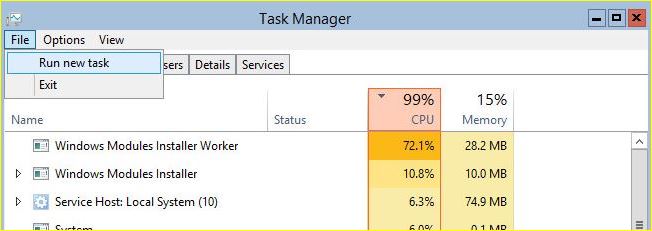
Once you are in Core state there is no graphic interface so we must appeal to PowerShell again. We can bring the PowerShell console up by pressing , opening "Task Manager" And then "Run new task" from the File menu, as you can see in the picture below...
17_CORE_TASKMAN_RUN

...and then call in the executable "powershell.exe".
17_CORE_TASKMAN_RUN_POWERSHELL

Once the console is open we can follow the same steps as we did before, so we identify the GUI related features but we re-add instead of removing them.

In order to do that we use the following commands:
      Get-WindowsFeature *GUI*
      Add-WindowsFeature Server-Gui-Mgmt-Infra, Server-Gui-Shell
      Restart-Computer

And have the following result:
19_CORE_ADD_FEATS_RESTART

After restart we are back to full functional GUI.


3. MinShell

As you can already guess, achieving MinShell state is possible:
  • from Full GUI by removing Server-Gui-Shell Feature but keeping Server-Gui-Mgmt-Infra
  • from Core state by adding only the Server-Gui-Mgmt-Infra and leaving Server-Gui-Shell out

>>  Still working on it. Next we will explore the looks, the benefits and setbacks of MinShell. <<


sâmbătă, 25 ianuarie 2014

 Complete guide to "In-Place" Migration of a Domain Controller from Windows 2008 R2 to Windows 2012 R2


This little thing is a thanks to a friend who finaly convinced to bring online some of my work.


After an extended period of search and documenting I decided I was ready to undergo a migration of a Server holding the role of Domain Controller from Windows 2008 R2 to Windows 2012 R2.

The initial server was used in productin for over 4 years, since I managed to raise it from Windows 2003 level to 2008 R2.

Server roles: 
  • AD DS (+NTP)
  • DNS (integrated) + WINS (for older clients)
  • DHCP
  • File Server + DFS (unsuitable rolefor a domain controller, I know, but that's the way I inherited it, issue soon to be addressed)
  • Antivirus McAfee ePO -(obsolete role, already moved on other server, so not important)
Upgrade "in-place" just to grasp the concept, means to upgrade the operating system, preserving the initial file system, installed programs and configured roles of the initial server.
There are a lot of contradicting theories over the internet. Lots of people say that a proper upgrade from 2008 to 2012 must be done by installing a new server and configuring the roles all over again. There are others that say an "in-place upgrade" should be possible, with some brief info from Microsoft itself (details here). There are a few others who tried and succeeded this kind of upgrade and also briefly described . But no one so far (as of janury 2014 when the original text in romanian was published) documented such kind of process with plenty of information and pictures so I considered useful to share my experience with those who will face this kind of challenge.

Why "upgrade in-place" ?
Configuring a Domain Controller from scrap and also preserving all the initial functionality, serving the clients like no change happened, not to mention a need for a rather short window of downtime available, I think are enough reasons to avoid the alternative. And I experimented it the hard way a few years ago when I chose to do a clean install and importing/reconfiguring when I upgraded the domain from 2003 verson up to 2008. Maybe in the near future I will commit to a clean install and promote a brand new server, followed by decomissioning the current one. Given the "temporary" lack of available hardware I chose the "in-place upgrade" as the most convenient way.

How do we prepare.
First of all we make sure that any existing role on the server can be held by another server (and as alternative it's recommended to be prepared for a full restore from a fresh system or even bare-metal backup).
For holding the vital roles of AD DS and DNS I am relying on a freshly installed and promoted Secondary DC.
For the DFS role I have another two servers configured for read/only replication.
McAfee ePO role is already obsolete and planned to be removed(as I already told), all clients being migrated on another server, so it is not impacting any functionality.
So the single vulnerable role id DHCP. There is a /22 scope that has reservations and exclusions that we have to keep in mind. In case of emergency this role could be reconfigured from scrap without any trouble (keeping a last moment backup file in case the reservations/exclusions list is exhaustive would be advised).

A second mandatory step is being sure we have a full backup. There is ana alternative way that recommends a separate backup for AD database, for DHCP and so on, it never hurts having that. But, to be absolutely sure we have to be sure we have a "bare-metal" backup stored on a server with a static IP so we can reach it without an DHCP service operational. An average time for such a backup is about 20 minutes so restoring the server in case of failure would be pretty quick, having the operating system and vital roles restored very easy.( this can be the subject of another post for those interested).
The File Server role can be held by any of the read/only servers mentioned before, even if this role should not be vulnerable since the futher works will affect only the system partition and not the storage ones.

Now that we passed the prerequsites we can move to the core subject.

Steps to follow:
  • first we make sure we use credentials with administrative rights (at least domain-wide or even forrest-wide if needed)
  • apply all windows updates for bringing the system up to date (will be useful later)
  • check the AD schema to be at least at 2008 level for all servers holding the AD role. This can be done by checking a certain registry key (HKLM\System\CurrentControlSet\Services\NTDS\Parameters\), htis key can hold different values: for Windows 2008 versions the right value is 47 (during migration its value will change to 56 for  Windows 2012 or 69 for 2012 R2)
  • make sure production can be stopped and all the services described before are offline
  • run the "bare-metal" with a destination folder/server different from scheduled backups backup, exactly before proceeding
  • Inserting a DVD containing a Windows 2012 Standard kit (or other desired operating system version) making sure that the initial version supports an "in-place upgrade" (same Microsoft page as refference); be aware we suppose to have an initial operating system that has a GUI (Graphic User Interface) and we plan to migrate to one of the same kind
  • AD DS Functional Level must be at least at 2003 level to be compatible ( be aware that a domain upgraded from 2000 to 2003 and then 2008 can still have a Functional Level of 2000 !!!). For a better understanding I sugest looking at this page Understanding AD Functional levels. For raising the Functional Level in case it is needed you may also check here
  • we run X:\support\adprep\adprep /forestprep from the DVD, whare X is the drive letter of your DVD drive: 

adprep command

  • Press "C" as required and then :
adprep result

       then:
    domainprep
           Now we are sure that schema went up to 2012 level so we can start the upgrade process.
      • We are ready to run the install process directly from the existing operating system's graphic interface, right from the root of the DVD. First step will look like this:
        copy temp files
        then we choose not to apply any updates (already done in the prep phase):
        no windows update
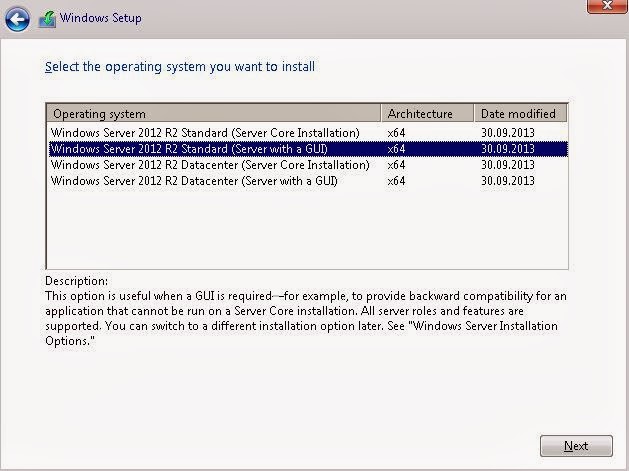
      • Then we choose the Windows version being aware of the GUI choice:
        choose windows with GUI
      • after that we choose to keep the file system, installed programs and already configured roles as they were ( remember the "in-place" concept), this choice assure no partitions will be altered so we keep the data on storage disks intact, including File Server and DFS roles:
        choose installation type (upgrade)
      • Right now the Windows install process makes sure the initial system is compatible with the new one:
        checking compatibility
      • in my case there was a particular compatibility problem consisting in some roles or features that cannot be ported on the new operating system:
        compatibility report (fail)
      • Stopping the install process and removing the said roles (asking for a restarting also):
        uninstall previously named roles
      • starting the install process again and following the same procedure we got a positive result (still having a little attention mark regarding vendors support):
        compatibility report (passed)
      • From now on the install job does its thing by copying the new files needed from the DVD disk:
        upgrading windows
      • Right now I eocountered a problem which needed further documentation:
        upgrade failed, reason McAfee
      • This was a little setback but after a quick search I found the McAfee antivirus client as being the cause. Beware, other antivirus, firewall or third party security tools may bring the same results. Disabling the antivirus client was the solution so... 
      • I remember thinking "third time's a charm" and restarting the install process again
      • From now on all went smooth. At some moment the RDP connection went down so I used the KVM console instead, just to be sure I got no more unexpected flukes.
        Upgrade succeeded (McAfee disabled)
      • There were a siries of restarts, no human intervention required. Still no RDP connectivity, all lasted about 30 minutes. I was still not sure of a positive outcome:
        finalizing your settings
        upgrade finished
        operating system start
      • Finally I got RDP control over a new server that looked like a normal, stable and reliable one.
      • At this point I was sure the operation was a successeven if some aspects still needed to be addressed !
      • Post-upgrade: identifying some issues at a first glance:

      some issues after start
      • that needed attention...:

      DHCP service not started
      ...some services that do not start and a presumed DHCP reconfiguration needed (remember it was the only sensitive, non-redundant and vital role) so I followed the steps given by the operating system itself:
      DHCP post deployment configurationDHCP post-install configuration wizard - description
      DHCP post-install configuration wizard - authorization
      DHCP post-install configuration wizard - summary


    • Once the DHCP problem was solved it all came back to normal. The other non working services were in fact set to start with delay:
      finished - all green
    • All the process lasted for about 3 hours and in the end it was all fully functional, all roles reinstated and replication with the secondary working like no change was made.

    • Operation was completed on 18.01.2014 between 6:00pm si 9:30pm (including preliminary phases) and after that we made thorough checks between 11:00am si 3:00am and the conclusion was the process was completely successful.

      I hope this detailed documentation of my work would prove to be a real help for many fellow system administrators and I am pretty sure it was the first of its kind, at least at the time the original was issued in romanian language. Now I finally took the time to translate it so it can be of some help to non-romanian speaking people.

      If some particular issues may appear or if you think any additions should be made please feel free to post your comments and I hope we can sole them together.

      sâmbătă, 18 ianuarie 2014

      Migrare "in-place" de Domain Controller de la Windows 2008 R2 la Windows 2012 R2

      Migrare "in-place" de Domain Controller de la Windows 2008 R2 la Windows 2012 R2


      Preambul: asa cum m-a sfatuit un bun prieten, de fiecare data cand am de realizat un proiect deosebit ar trebui sa realizez si un jurnal al activitatii respective pentru a fi de folos si altora care ar dori sa realizeze un astfel de proiect si nu au o sursa de inspiratie.

      Dupa o perioada de circa doua saptamani de documentare din surse accesibile de pe internet am reusit sa fac o planificare pentru migrarea unui Domain Controller configurat si functional (in productie) pe Windows 2008 R2 Standard catre Windows 2012 R2 Standard.
      Serverul initial este in productie de aproximativ 4 ani, atunci cand l-am configurat pe o masina noua, la vremea respectiva reusind si o migrare de la 2003 la 2008.
      Rolurile acestui server sunt:
      • AD DS (+NTP evident)
      • DNS (integrat) + WINS (pentru compatibilitate clienti)
      • DHCP
      • File Server + DFS (stiu ca nu e OK dar asa l-am mostenit si nu am avut hardware necesar pentru a muta acest rol la vremea respectiva)
      • Antivirus McAfee ePO - in curs de dezafectare (la fel, la vremea respectiva era singurul server disponibil)
      Upgrade "in-place" pentru cei ce nu stiu exact, inseamna sa facem upgrade la sistemul de operare al serverului 2008 existent cu pastrarea sistemului de fisiere initial, a programelor instalate si a rolurilor configurate pe acest server. Exista pe internet o groaza de pareri contradictorii, multi spun ca la upgrade de Domeniu de la 2008 la 2012 trebuie instalat un server nou si configurate rolurile de la capat. Mai sunt unii care spun ca un upgrade "in-place" ar fi posibil, conform cu o succinta informatie de la Microsoft (detalii aici). Ma exista cateva persoane care au incercat si au reusit un astfel de upgrade si au descris pe scurt suita de operatii. Nimeni insa nu a documentat o astfel de operatiune de aceea consider ca prezentarea cu lux de informatii ar fi cat se poate de utila celor care se vor intalni cu o astfel de provocare.

      De ce "upgrade in-place" ? Configurarea de la zero a unui DC cu toate rolurile conexe comporta o multime de si cu pastrarea functionalitatilor initiale, deservirea in continuare a clientilor ca si cum nimic nu s-ar fi intamplat, ca sa nu mai mentionez de timpul scurt de down-time disponibil, sunt o serie de motive serioase pentru a evita aceasta varianta, si vorbesc in cunostinta de cauza deoarece am experimentat deja, acum cativa ani un astfel de upgrade de Domeniu de la 2003 la 2008. Probabil ca ulterior voi recurge la achizitia unui server nou, instalarea lui "pe curat", transferul rolurilor si apoi decomisionarea serverului vechi. Deocamdata insa, in lipsa de hardware am considerat varianta "upgrade in-place" drept cea mai convenabila.

      Cum ne pregatim. Intai ne asiguram ca fiecare rol poate fi preluat la nevoie de un alt server, in caz de esec (si ca masura alternativa la restaurarea de backup).
      Pentru rolurile de AD DS si DNS ma bazez ca backup pe un server nou cu rol de Secondary DC, recent instalat si promovat ( atunci am inlocuit un secondary DC bazat pe Windows 2003).
      Pentru rolul de DFS exista alte doua servere care se sincronizeaza permanent in mod read/only si retin orice modificare pe serverul in cauza.
      Rolul de server ePO nu mai este de actualitate, toti clientii activi au migrat pe un alt server instalat cu ceva timp in urma. Oricum am in plan si eliminarea acestui rol,  deci nu ar fi nici o pierdere.
      Singurul rol vulnerabil in caz de probleme este cel de DHCP. Avem un scope de /22 care contine si rezervari si excluziuni de care trebuie sa tinem seama. In caz de nevoie acest rol ar putea fi configurat de la zero fara nici o problema.

      Un al doilea pas obligatoriu: trebuie sa ne asiguram de backup. Exista varianta care recomanda backup separat pentru baza de date de AD, separat pentru DHCP, etc.
      Noi, ca backup avem un  "Bare Metal" stocat pe un server cu IP (cum altfel ?) fix pe care il putem gasi in retea si fara existenta unui DHCP. Durata medie backup = 20 min. deci si restaurarea (in caz de probleme) se poate rezolva rapid cu refacerea completa a sistemului de operare si a programelor si rolurilor instalate si configurate pe serverul initial.
      Rolul de FileServer il poate prelua oricare din cei doi membri read/only, desi acest rol nu este vulnerabil deoarece urmeaza sa alteram doar partitia de sistem, teoretic partitiile de date raman intacte.

      Acum, ca am analizat toate aspectele premergatoare, putem intra in subiect.

      Pasi de urmat:
      • intai ne asiguram ca rulam cu credentiale care au drepturi administrative cel putin la nivel de domeniu sau chiar la nivel de forrest daca este cazul (nu si in cazul de fata)
      • aplicam toate update-urile de Windows pentru a aduce sistemul actual cat mai la zi (va fi folositor mai tarziu)
      • verificare ca schema AD este cel putin 2008 pentru toate serverele cu rol de DC (done and done). Pentru asta se verifica valoarea unei chei din registri (HKLM\System\CurrentControlSet\Services\NTDS\Parameters\), cheie care poate lua mai multe valori: pentru versiunile de Windows 2008 valoarea corecta este 47 (iar in cursul migrarii aceasta valoare se va schimba in 56 pentru Windows 2012 sau 69 pentru 2012 R2)
      • ne asiguram ca nu sintem in timpul productiei si pus offline toate serviciile descrise mai devreme
      • rulat backup "bare metal" exact inainte de inceperea procedurilor, intr-o locatie diferita de backup-ul zilnic
      • Introdus DVD cu kit de Windows 2012 Standard, sau cu versiunea dorita de sistem de operare, avand grija ca  versiunea de sistem de operare de la care plecam sa permita upgrade "in-place" (avem ca referinta aceeasi pagina Microsoft); atentie, in acest caz consideram ca lucram cu un sistem de operare cu GUI (Graphic User Interface) si migram la un sistem cu aceeasi caracteristica
      • AD DS Functional Level trebuie sa fie cel putin la nivel de 2003 pentru a fi compatibil (atentie, un domeniu upgradat de la 2000 la 2003 si apoi la 2008 poate avea in continuare un Functional Level de 2000 !!!). Pentru o mai buna intelegere a notiunii sugerez consultarea acestui link. Pentru detalii despre ridicarea nivelului functional gasiti detalii aici
      • de pe DVD rulam X:\support\adprep\adprep /forestprep unde X este discul pe care aveti DVD-ul (of-course): 

      adprep command

      • Dupa cum ni se cere apasam "C" si apoi :
      adprep result

      •  apoi X:\support\adprep\adprep /domainprep :
      domainprep

      Asta ne asigura ca schema s-a ridicat la 2012 si putem incepe etapa de upgrade
      • Acum suntem gata sa rulam procesul de instalare al noului sistem de operare direct din interfata grafica a sistemului existent, si anume din radacina discului de instalare. Prima etapa in executia acestui proces incepe astfel:
        copy temp files
        si apoi alegem sa nu facem nici un update (deja am ajuns la zi intr-un pas anterior):
        no windows update
      • Apoi alegem ce versiune de Windows dorim sa instalam, atentie, aici trebuie sa alegem varianta cu GUI:
        choose windows with GUI
      • dupa care selectam varianta de upgrade care lasa sistemul de fisiere, programele instalate si rolurile configurate asa cum erau ele (de unde si conceptul de "in-place"), aceasta varianta nu permite alterarea partitiilor deci conserva inclusiv discurile de date (in cazul nostru rolul de FileServer si configuratia DFS):
        choose installation type (upgrade)
      • In acest moment instalarea de Windows asigura compatibilitatea intre sistemul initial si cel ce urmeaza sa se instaleze:
        checking compatibility
      • in cazul meu aceasta verificare a dus la o prima problema de compatibilitate, si anume existenta unor roluri sau features care nu pot fi portate pe noul sistem de operare:
        compatibility report (fail)
      • Dupa oprirea procesului de instalare a noului sistem si dezinstalarea rolurilor indicate (care au cerut si un restart):
        uninstall previously named roles
      • am pornit din nou instalarea si am parcurs din nou pasii indicati anterior, rezultatul fiind de aceasta data pozitiv (cu un mic semn de exclamatie):
        compatibility report (passed)
      • De aici incepe copierea efectiva a fisierelor de pe discul de instalare...:
        upgrading windows
      • Aici ne-am lovit de urmatoarea problema, care a presupus o mica documentare suplimentara referitoare la textul erorii:
        upgrade failed, reason McAfee
      • In acest moment de (im)pas am mizat pe faptul ca, ori de cate ori antivirusul McAfee apare in primele 3 cauze la o simpla cautare a erorii, atunci el este cauza. Ca urmare am dedus ca problema era legata de antivirusul McAfee care ruleaza sub un user cu credentiale care au drept de administrare locala insa nu permite alterarea fisierelor de sistem pe un cotroller de domeniu. Presupunerea era corecta deci am dezactivat antivirusul si ... 
      • Imi aduc aminte ca, plin de incredere am zis "third time's a charm" si am reluat procesul de instalare. Atentie aici, puteti generaliza si, daca dintr-un motiv sau altul va loviti de aceeasi problema, incercati sa rezolvati probleme legate de firewall, antivirus, drepturi de acces ale userului pe care rulati procesul de instalare...
      • Totula decurs normal in continuare, la un moment dat s-a intrerupt conexiunea RDP asa ca am monitorizat in continuare de pe interfata KVM:
        Upgrade succeeded (McAfee disabled)
      • Au urmat o serie de vreo 2 sau chiar 3 restart-uri fara interventie umana, fara conectivitate RDP, acest pas a durat aproape 30 de minute (!) in care nu eram sigur inca de un rezultat pozitiv:
        finalizing your settings
        upgrade finished
        operating system start
      • Dupa care, in final, am obtinut din nou controlul prin RDP si, intr-un sistem care arata ca un Windows 2012 normal si stabil.
      • Aici am fost deja sigur ca operatiunea s-a incheiat cu succes si mai sunt doar cateva aspecte de remediat !
      • Post-upgrade: la o prima verificare am aflat ca avem unele probleme:

      some issues after start
      • care cereau atentie...:

      DHCP service not started
      ...legate de servicii care nu pornesc si de o presupusa reconfigurare de DHCP (singurul rol sensibil si fara redundanta) am urmat insa pasii indicati:
      DHCP post deployment configurationDHCP post-install configuration wizard - description
      DHCP post-install configuration wizard - authorization
      DHCP post-install configuration wizard - summary


    • Odata rezolvata problema cu DHCP-ul totul a intrat in normal, serviciile care nu porneau s-au dovedit a fi unele servicii care erau setate sa porneasca automat cu un anumit delay:
      finished - all green
    • Toata aceasta operatiune a durat aproximativ 3 ore la capatul carora s-a dovedit ca totul functioneaza OK, rolurile au fost preluate cu succes, replicarea cu cel de-al soilea sever de domeniu functioneaza fara cusur

    • Operatiunea s-a desfasurat in 18.01.2014 intre orele 6:00pm si 9:30pm (aproximativ, inclusiv fazele preliminare) dupa care am facut verificari amanuntite intre orele 11:00 si 3:00am dupa care am ajuns la concluzia ca totul functioneaza impecabil.

      Sper ca aceasta documentare sa usureze munca altor colegi de breasla si sunt aproape sigur ca este prima documentare a unui upgrade "in-place" de la un server de Active Directory de nivel 2008 la nivel 2012, cel putin in limba romana.

      In functie de situatiile particulare pot aparea eventual si alte probleme, in acest caz nu va feriti sa aduceti comentarii sau idei noi care pot imbunatati acest subiect.